Thursday, April 4, 2013

ALV Configuration on Webdynpro


Introduction:

One of my post explains the process of displaying ALV on a webdynpro screen. Once you see the ALV output, next requirement from business would be, Can I sort the data? or Can I show different colors on the output? or Summation of totals and various other requirements related to the ALV output.

ALV's using Function Module:

If you are displaying ALV using function module on a dynpro, it is pretty straight forward where you pass your field catalog, layout options and data to SAP standard function module and it has all the logic to display ALV. If you have to do some additional functionality, then you might have to call few other function modules either before or after ALV display.

ALV's Using Global Class/Methods option:

If using class and methods to display ALV on a regular dynpro, there is a main method to which you pass data, field catalog, layout and it displays ALV. This standard class does have other methods which can be used to configure ALV display as per user requirements, like coloring columns, Sorting, Sum/Total of columns etc. You would have to call those methods with the same instance of the class which you use for ALV display.

ALV's on WD:

Whereas on WD ALV, display of ALV is handled in a different manner as WD is based on OVC concept and also it utilizes Oop's concepts in development. It might be little complex to other methods we have seen above, but this provides more options and features to the final ALV display.

Coming to actual concept of WD ALV,

Just like a function module, SAP has developed a standard WD component SALV_WD_TABLE which needs to be included in your used components list and then map your internal table to DATA context and it shows that data in an ALV. So far its simple but if you want to configure the look of ALV, like coloring ALV  rows or columns, setting sort etc it needs some additional logic

For WD ALV, SAP has used the core object oriented concept in coding, the reason I am saying this is because I see that there are classes for even for small requirements like, for getting, setting column's configuration, there is a method CL_SALV_WD_COLUMN, for creating header for ALV, there is a class with its own methods which is, CL_SALV_WD_HEADER and so on.
But to be able to use this classes and methods, first you have to get MODEL of that alv.

In lay man terms, I will try to explain the concept SAP followed : (for people who are good in OOP's what I am saying now might look childish :) but this helps for people who started working in ABAP directly).
In main WD Component SAP has provided an interface method which is GET_MODEL whose output is a Class which SAP has referred in its WD component to handle ALV configuration. Class name is, CL_SALV_WD_CONFIG_TABLE. Now, inside that class there are lot of inherited methods which again have another class as exporting value, like IF_SALV_WD_COLUMN_SETTINGS~GET_COLUMN method has CL_SALV_WD_COLUMN as output. Now, if you want to perform any column operations for your ALV, you would have to call the methods in the latter class. Basically, SAP collected all the requirements related to ALV, then grouped them based on its topic and then developed a global class for each topic or scenario and then inherited all the classes in the main SALV_WD_TABLE WD component. Now, if you want to use those methods you just have to create instances for each class and call respective methods.

Now the interesting part, that is actual coding :) to understand what I am talking above: 

Here I am trying to handle a requirement where we have to color code ALV Columns based on certain condition. I am taking standard SPFLI data and coloring few columns based on certain condition.

First step is to develop a simple WD ALV application which shows SPFLI data( I already have a post explaining how to display a simple ALV) which looks as shown below.


Now I am coloring certain rows based on Carr id. To make it more interesting, When coloring comes to picture, question every one has is what colors are allowed. There is standard domain, WDUI_TABLE_CELL_DESIGN which has the list of colors. To make our ALV little interesting, I added a parameter to our WD View to select what color needs to be shown and based on that displayed ALV. My View looks as shown below,


Input field refers to domain WDUI_TABLE_CELL_DESIGN which provides automatic F4 for that field and the view container for ALV. User needs to specify color number and click on a button to show ALV output. I have all my logic in the method which triggers when that button is clicked.

Step 1: Get the color field value into a variable.

Step 2: Now, we have to create an instance for the wd component salv_wd_table. In my wd, wd_alv_output is the name i used for that component usage.

* Declaring variable for component usage.
  DATA lo_cmp_usage TYPE REF TO if_wd_component_usage.

* Moving ALV_OUTPUT component usage instance to local variable.
  lo_cmp_usage =   wd_this->wd_cpuse_alv_output).

  IF lo_cmp_usage->has_active_componentIS INITIAL.
    lo_cmp_usage->create_component).
  ENDIF.


Step 3: Now, I want to access the interface methods inside that SALV* component for which I have to create an instance for its interface controller.

* Variable for the interface controller of SALV
  DATA lo_interfacecontroller TYPE REF TO iwci_salv_wd_table .

* Creating an instance for local variable.
  lo_interfacecontroller =   wd_this->wd_cpifc_alv_output).

Until above, we can use Generator to generate code automatically.

Step 4: As mentioned in above explanation, I have to call method GET_MODEL which is SALV interface method which will give access to all the methods as shown below,

* Get Model is done here
  DATA lv_value TYPE REF TO cl_salv_wd_config_table.

* lv_value is the instance of the class cl_salv_wd_config_table.
  lv_value lo_interfacecontroller->get_model ).

Step 5 : Now you can access any method of that class, one example is, if I want to disable the Filter button which you see on the right corner of ALV, you just have to call a method as shown below,

* Setting the indicator to disable Filter button.
if_salv_wd_std_functions~set_filter_filterline_allowed ( value abap_false ).

Step 6: Coming to our requirement which is to color a column, first you need a field in your context menu which can handle as what color needs to be shown. In my test case, I have created field named,


First, fill your internal table with data. Then loop through table to fill that field with the color which you want to show on the output,

  SELECT *
    FROM spfli INTO TABLE li_spfli_copy.

* Here I am filling a color based on carr-id.
  LOOP AT li_spfli_copy INTO li_spfli.
    IF li_spfli-carrid EQ 'AZ'.
      li_spfli-cell_design lv_color.
    ELSEIF li_spfli-carrid EQ 'LH'.
      li_spfli-cell_design cl_wd_table_column=>e_cell_design-goodvalue_light.
    ENDIF.
    APPEND li_spfli TO lt_spfli.
  ENDLOOP.


Step 7: Now, the main part where you have to set the columns which you want to color code. This is a little tricky method,

First you have the get column settings(Basically, you are inheriting the properties of SALV_WD_TABLE which you create its instance)

* SALV has used cl_salv_wd_column and its method to set properties of columns, here you are trying to inherit that into your wd.

  DATA:
     l_column TYPE REF TO cl_salv_wd_column,


* lv_value is filled when you did get model. Inside that, you are calling get_column method to get the instance * of the columns and then call the methods inside that class to make settings to that column.

  l_column lv_value->if_salv_wd_column_settings~get_column('CARRID').
  l_column->set_cell_design_fieldnamevalue 'CELL_DESIGN').

* Similarly setting other columns also to point to that field.
  l_column lv_value->if_salv_wd_column_settings~get_column('CONNID').
  l_column->set_cell_design_fieldnamevalue 'CELL_DESIGN').

Now, the final output looks as shown below:


You can email me if you have any questions or if I have something wrong in my post. Hope this was helpful for you guys :).

Wednesday, February 6, 2013

ALV in Webdynpro Application


ALV Output display is one of the most used concept in SAP to meet business requirements. Currently to develop ALV on a normal dynpro output, there are various methods in ABAP. Initially Functional Modules were used to develop ALV's, later SAP introduced Object Oriented classes to develop ALV and introduction of OOP's did help in adding quite new features

Simple ALV on a Webdynpro application is quite simple to develop. In the below example, I am trying to display SPFLI output on an ALV.

First Step is to Create a new Webdynpro Application through SE80 with a View and a Window.

In this example, I have my data retrieval logic inside Main View(WDDOINIT) but you can also have that in Component Controller itself and fill the Context node in a WDDOINIT of Component Controller.

After WD Component is created, go to the Used Component section in the WD definition and add Component Usage for SALV_WD_TABLE.

About SALV_WD_TABLE: For some of the core features of ABAP, SAP has already developed re-usable components which can be used to get required functionality. Another example for this is, WDR_SELECT_OPTIONS using which we can display Select-Options on our Webdynpro Application.


Create a Context Node of Type SPFLI and add all its fields to the node(You can use Add Attributes from Structure button to add all the fields of that table in the node). Dont forget to make the Cardinality as 0..n to indicate that its a table and not structure type.


Next Step is to Create a View and add Context Node type SPFLI and Bind it to the Component Controller Context node.(You can even directly use Context node created in Controller directly here just by dragging and dropping).

Here, I am dragging Node from Controller to View.

Now, click on the MAIN View, and add an element of type ViewContainerUIElement and give an ID to it.
Important point here is, whenever you add a View ContainerUI Element, it provides and option for you to embed another view(which displays data) to it in the Window section.

Until here, we are done with the part of creating Context Node, View, adding a view container to the view. Next step is to fill the Context node table with the data.

In the WDDOINIT, write code to get data and then bind it to context node table. Binding part can be done easily using code generation wizard provided by SAP as shown below.


and the code generated is,

  DATA lo_nd_spfli TYPE REF TO if_wd_context_node.

  DATA lt_spfli TYPE wd_this->elements_spfli.

* navigate from <CONTEXT> to <SPFLI> via lead selection
  lo_nd_spfli wd_context->get_child_nodename wd_this->wdctx_spfli ).

  SELECT FROM spfli INTO TABLE lt_spfli.

  lo_nd_spfli->bind_tablenew_items lt_spfli set_initial_elements abap_true ).

With this we are done with the part of filling context node, next step is to Bind the Context Node with the SALV_WD_TABLE context node.

Logic here is, when we develop ALV using function module, we pass our output internal table data to the function modules ALV data table and that data will be shown on the output screen in an ALV, similarly in Webdynpro once you bind Context Node table data to SALV* data node, output is shown in ALV. Binding is done as below,

Whenever you add a Component Usage(Another WD Component) to the Webdynpro, interface controller of that WD component will be available in our WD too and you can see that in the left tree under component usages node.


Double click on the Interfacecontroller_Usage node and in the context, Map SPFLI node to Data Node of SALV* component as shown below,

I have dragged SPFLI node to Data Node.

Now, in the window, navigate to the ALV View container, right click on that and click on Embed View and then in the pop-up select the ALV data view, once you do that it will look somewhat shown as below


That is the last step in the development, we are ready with an SPFLI ALV output. Once you create a WD Application for this component and execute it, it looks like below screen shot.


In my next blog, I will write as how to handle configurations to the ALV, similar to Layout options we do on dynpro ALV.


Tuesday, January 29, 2013

Webdynpro Application Help - Consolidated


Webdynpro Development is one of the hot topic/requirement in current market. One of the main reason for that is the usage of Application out of SAP logon, that is requirement for ability to access data, post transactions, view market analysis over web instead of traditional SAP logon is increasing day to day.

There are lot of blogs, websites where you can find tutorials, help, notes, demos etc but I felt that there isn't any place where we can find consolidated help for rookies to webdynpros. I tried to put some notes on few topics which are simple but are crucial when doing Webdynpro Development.

When Defining Views - When Defining views, if you are following an online demo you just proceed what he says but if you are doing on your own, you might get a doubt as where to start..

Starting Element of View - If your screen starts with input/output fields then you would need a GROUP UI element inside which you can put your variables.
Whereas, if your screen starting section itself is a Table, then you would need a ViweContainerUI Element to which you will bind a Table.

Above two are the most common starting points, apart from these you do have few other options which can be used as starting elements based on your requirement.

Properties of Elements -

  • Layout - This is one tricky property which I get confused whenever I start a new WD application development. Below is the list of available options in a Layout with simple explanation as what it does..
    • FormLayout - Left to Right, across the output screen. This layout will make the that group/element to spread across the complete screen.
    • Grid Layout - This helps us to arrange the output based on number of columns in output.
    • Matrix Layout - Number of columns not fixed. Each element can be specifies for which row and which column on the output. 
    • Rowlayout - Row by Row output.
Now, these layout types vary based on element type. The above ones are specifically for a Group Layout. When you select Formdata at the header UI element level, that gets copied to all the elements you create under it but you will have the option to change those after you create. Within Formlayout, there are more types..
      • Formdata - All the elements you add get aligned side by side.
      • FormHeaddata - All the elements act as Headdata so each element shows up one below the other.
      • FormTopdata - FormTopdata adds the field to the top row of the application.
    • Tip - When you are adding multiple input fields inside a GROUP UI element, then for the first input, we use Formdata, 2nd input will have FORMHEADDATA if you want it to show it below the first input field, if you put that as FORMTOP, then it shows next to first input field.
There is a blog/demo on SDN by Anurag Chopra which explains these layouts in more detail and below is the link for that..thanks for his detailed explanation. 


Remaining properties of the elements are mostly self-explanatory.

Notes regarding Coding:

SAP did provide us with Wizard feature which really helps a lot when doing the actual coding, but just a note as what it is creating when we do GET or SET of an attribute or table.

Case 1 - When I am trying to do SET operation on a Table element in the context node,

             Step 1:  It creates a instance of the Context Node(Complete Context node) as shown below,

    DATA lo_nd_spfli TYPE REF TO if_wd_context_node. - In my context node I have lot of nodes but in the initial step i tried to SET a single node, so it created an instance type of that context node.

           Step 2: It creates an instance for that element as,

 DATA lt_spfli TYPE wd_this->elements_spfli. - Here its creating an internal table based on the element you have selected.

           Step 3: In step 1, you have just created a Type of that Context node, now, you have to link the local instance to actual Component Controllers context node.

*   navigate from <CONTEXT> to <SPFLI> via lead selection
    lo_nd_spfliwd_context->get_child_nodename wd_this->wdctx_spfli ).

          Step 4: Add necessary logic to fill the data to be displayed in the output.
   
          Step 5: Link the internal table data to context node element. - In this step, you will map the internal table data to the actual context nodes element created above.

  lo_nd_spfli->bind_tablenew_items lt_spfli
                                         set_initial_elements abap_true ). - You are binding local internal table data to the node instance which is created in step 1.

 I will keep on adding notes about stuff which are simple but good to understand.


Monday, November 19, 2012

Authorization Trace in SAP


Tracing Authorization Issue in SAP:


Identity Management and Data Security are very important concepts to be dealt within SAP to restrict users from accessing confidential information within the system. SAP being the global ERP system in most of the clients, its very important to make sure that proper authorizations are provided to each user. For EX, person working in the sales team should or may not be provided authorizations to be able to access Financial related transactions. SAP has provided some good options to restrict users from accessing information in any possible ways.

However, one of the most common issue we see is even the correct person missing necessary authorizations. Like, a manufacturing person working on the shop floor might be missing authorization to access a custom transaction dealing with Operations for that Production Order. The purpose of this Blog is to help either a functional or a technical SAP guy to identify the authorization object which is missing due to which user is not able to access the transaction.

Authorization Error Analysis Transaction: SU53

SU53 - In my experience, I can definitely say that this is one of the very important and useful transaction for any person working on SAP system.

To restrict users from accessing a transaction, we use a concept called Authorization object whereas only the users having that authorization object in their profile will be able to access the transaction which checks that Authorization object.

When you run a transaction in SAP, you might see a message as 'You Are Not Authorized' or 'No Authoration' etc, next step you would need to do is go to transaction SU53 where is shows the name of the authorization object which has failed. If you are eligible you can just request for that authorization object to be added to your profile. 

Not just with custom transactions, sap standard transactions also use the same concept, and this method helps you to identify the necessary authorization objects which needs to be added to your profile to get access to that transaction.

Another important point is, even if there is no Error Message on the screen if you feel that some thing is weird, as soon as you run the transaction you can check SU53 if any authorization object is failed. Like, there is SAP standard transaction which should show a button to DELETE a row, now we can restrict the visibility of that button using Authorzation-Object concept. In this case, program will not show any error message, the output is that the user will not be seeing that button. So if you feel that some buttons or some thing is missing when you access a particular transaction, check SU53 immediately to see as what is the issue.

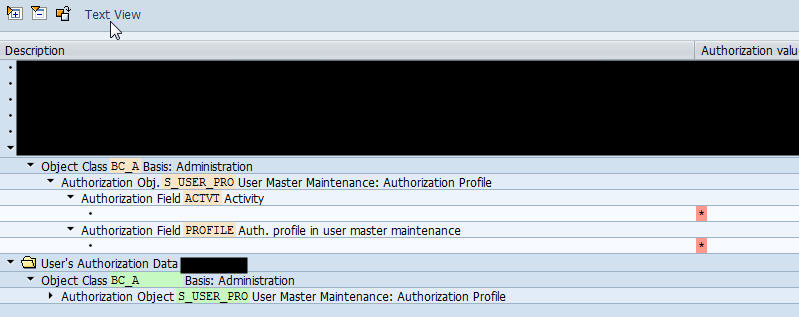
Below screen shot shows a sneak peak of SU53. In that screen shot, S_USER_PRO is the authorization object for which the check has failed.


This SU53 can be used even to check authorization issues of other users using the Other Object button(3rd from left) on the screen shot above.

System Trace: - Using ST01

This is another way of tracing an authorization error.

You can use system trace function in transaction ST01 to trace authorization error when a transaction is being ran in an external session but on the same application server.

For EX: I have a webdynpro application which might have given some error message on the screen. For this SU53 may not work all the times( as the application is being ran on a browser), for which we can use the above method. Another example would be, there might be Remote Function module which is being called on a different system.

Process of steps is, go to transaction ST01 and check the Authorization Check check box and click on Trace On button(As Shown below).


We do have an option to restirct the trace by User, Program or Transaction using the General Filters button. If there are no filters, this transaction runs wide open for all the users and transactions in that system.

After activating the trace, perform your process steps then come back to ST01 and click on Trace Off Button and then click on the Analysis button to display the trace. Output of the trace looks like the screen show shown below,


In the above screen shot you can usee that, S_DEVELOP check was successful with RC(Return Code) as 0 and S_PB_PAGE has failed with return code 12, so to get access to that transaction, S_PB_PAGE needs to be added to that user's profile.

I will try to post another blog about Authorization Objects and sap transaction code SUIM but this is it for now :). Hope this helps you to solve some of the critical issues on your system :).


Friday, August 17, 2012

SAP GUI Issues - Inconsistency check tool


In my experience with SAP, I came across lot of issues for which everything looks fine on the development side but the report does not work properly for few users.

If you come across any strange issues or issues which appear only for few SAP users, then its mostly related to SAP GUI which is used to log on to SAP.

I have listed few issues below which users might face if the GUI installation was not proper,

  1. When you open any transaction on SAP and it dumps with program name being SAPFGUICNTL, SAPLOLEA or any SAP*GUI* or SAP*OLE* related report, then that dump is related to GUI issues.
  2. Issues/Dumps with ALV reports - If ALV's dump or look weird for particular users, then that is an issue with GUI. ALV's interact with our front end to execute few API's, if the GUI is not installed properly then the ALV's may not work.
  3. Issues HTML output reports.
  4. Issues on Graphical output reports.
  5. Issues with ECL Viewer which is delivered by SAP for viewing engineering drawings.
In general, if you come to a scenario where it works fine in few machines fails in few, then that might be mostly related to GUI version.

Basically, when you install SAP GUI, it installs lots of components related to features which you might be used on your SAP system. Best Ex, is ALV, when you click on DOWNLOAD to desktop button on an ALV output, SAP has to interact with your desktop to save the file onto the desktop.

Now, to check if that is really a GUI related issue or not, SAP has provided with few tools/techniques which can be used to detect the issue. SAP Note 1099439 illustrates all the techniques provided by SAP. In this blog, I have listed one of the simplest method which is,

Once you log on to SAP, you will see a button on the top right side for customizing our layout, click on that and then on Options,


On the next pop-up, on the left tree, click on the last node which is System Information.


Here, you should see the button which says CHECK SAP GUI INSTALLATION, once you click on that SAP will check your GUI installation to check if any of the components are installed incorrectly or if any components are missing.


Tuesday, August 7, 2012

Creating View Cluster


What is View Cluster?


We all know about Table Maintenance which is providing an option for user to maintain entries in a Z table using transaction SM30.

Suppose if I want to maintain entries in more than one Z tables which are dependent, if we need to maintain each table once using SM30, that is a tedious job and there is quite a good chance of user making mistakes in maintaining these tables. To handle this scenario one of the option which comes to any person working on SAP is, can we write a program which helps me to maintain all the tables at once? Yes, we can, but, there is another option provided by SAP, which is View Cluster.

Even this is something done by a developer there are some pros compared to maintenance transaction, if you are looking for simple functionality of just maintaining entries in table and triggering some process during SAVE/DELETE etc. If you are looking for complex, user friendly or cosmetic kind of features, then YES developing a report is a better option. Main advantage of View Cluster is, its easy to use, easily understandable by person with no technical background, doesn't needed to be changed if we have any changes to tables,

Creating View Cluster:

SE54 is the transaction code for creating View Cluster. This is the same transaction we use for creating Table Maintenance too.

Once you enter into this transaction, on Top you will see a button which says Edit View Cluster, click on that button to navigate to View Cluster create screen.


You will see the below screen, where specify the desired View Cluster Name and click on Create/Change button.


Below screen is the header screen where you can specify the Short Text of the View Cluster and also its attributes.


Here we are creating a simple cluster so, I have selected use in Hierarchy radio button and Complete Radio button.

Once the header maintenance screen is maintained, then click on the Object Structure folder on the left to maintain the actual list of tables you want to be able to maintain using this View Cluster.


View/Table Column - Here we specify the Table/View name which you want to include
DDIC Column - When you click on that it will show the fields of that table
Short Text Column - Specify a description for this Table
Predecessor - This field is used to maintain Header/Child relationship b/w tables.
Dependency - Here we indicate whether it is a Header Table to child table.
Position - Position of the table in the output
Start - At least 1 Table needs to be defined as a Starting point.

Similarly you can add upto 14 tables in a single View Cluster.

Adding Parent/Child Relationship tables:

If we have Header table and Item table to be maintained, then 1 row will be related to Header table and when maintaining Item Table, on its entry maintain Predecessor as Header table, later maintain the field dependencies for both the tables. Below Screen shots explain as how to maintain them,


On the Field-dependence screen,


Once this is complete, Save the Cluster, and then click on Activate on the Header Entry level, that will save and create the view cluster.

Testing:

SM34 is the transaction to maintain entries in View Cluster. For the above demo, final output looks as shown below.


I had 3 tables, 1 is Independent table and 2 dependent tables. Final output shows as below, the description we gave while creating the entries will be shown in the final output too.

Important Transactions:

SE54 - Create/Change View Cluster

SM34 - Maintain data in View Cluster
SE93 - Used to attach Transaction Code to View Cluster.

Friday, June 22, 2012

Basics of Debugging in SAP


Debugging on SAP:

Debugging is one of the best and wonderful tool used by the developer(In any development Environment) to track down a issue and also to understand code or logic written by any other developer.

As we know, since its being a technical stuff, not all Functional Consultants will have an idea about it, so they have some tough time initially to understand as what it is and how it works, but once they understand it, its like piece of cake to any person.

I have put some basic information regarding debugger and some basic concepts about debugger, going over these might help you in not getting panic when you see a debugger screen :).

Note: In SAP, there are 2 types of debuggers. One is Classic debugger and the other one is New Debugger. Classic debugger is lot easy to use and also to understand but New debugger(available from release levels 6.40) is has more features and also will be used vastly in future, so I am going over New debugger in my blog. 

Some brief differences between these 2 types are, (Courtesy of SAP)

  • The Classic Debugger runs in the same roll area as the application to be analyzed (debuggee). It is therefore displayed in the same window as the application. However, this technology also has some restrictions. For example, some ABAP programs (such as conversion exist) cannot be analyzed in debug mode for technical reasons. However, the most significant restriction is that no ABAP technology can be used for designing the Debugger interface and it is therefore not possible to create a modern user interface.
  • The New Debugger on the other hand, is executed in a separate external session (Debugger), while     the application to be analyzed (debuggee) uses a second external session. With this technology, the user interface of the Debugger can be designed freely by ABAP means.


About New Debugger:

SAP's old debugger which is Classic debugger was user-friendly but has some cons as described above. This New Debugger is a lot different to old debugger, just not in look but also in features.

List of few features available on New Debugger are:

1. Ability to Configure the look of the debugger screen.
2. Multiple Desktops options to go over multiple types of data while debugging.
3. Access to all the Global Variables of the report or function module which we are debugging. 
4. Tab Layouts to easily access multiple information which is necessary while debugging. In Classic debugging, to get to some of the information, we have to navigate through Menu Options.
5. Advance features like Saving a test variants to functions modules while debugging, searching for a particular entry inside a table while in debugging, option to get to the updated source code being in debugging mode and few others.
6. More options while debugging Object Oriented code compared to Classic debugger.

Setting up a break-point or starting a debug session:

Option 1:

Program goes to debug mode when you enter /h in command prompt and then execute the report.

Option 2:

In the program place the cursor on a particular point where you want to debug and click on the stop button on the top. When you execute, program will stop here in Debug mode.

Option 3:

Using BREAK-POINT command inside the code. This is mostly used by the developer, if you are not the developer of that report, you cannot use this option.


Difference between the 2 Stop Buttons is, generally for debugging a report we use the one with no human icon on it. STOP icon with human icon on it will be used only for External Debugging, that is if your application is being called from out of SAP's current session. Example cases are:

1. If we are debugging a Webdynpro application which actually runs on an Internet Explorer browser, we use the External Debugging button to put a break-point.
2. If we want to debug any Portal or PI Application Call, we use External Debugger.

This doesn't mean that you cannot use that for normal report debugging, we can set a break-point using this button too for a normal debugging.

Also, for the below screen shots, I have configured my debug screen to show Code on the left part of screen and the variables data on the right part of the screen, Actually this is the standard layout, but you can change this layout to have 4 screens on a layout..

Once you are in Debug Mode,


On the left screen you will see the code and on the right screen you can see the values of the variables at that point of the program. Like, if you see on the right side p_copy variable has value 001 at this point of the program execution.
Here, to debug step by step, we can use the buttons on the top of debugger screen which are,
If you want to go Step-by-Step either click on F5 or click on first button of above.
If you want to execute a complete step(Like a Function Module called in program without going into the function module, click on second button or F6.
F7 is to come out of step. Like you have gone into a function module, now to come out of it without going through the whole logic, use F7.
F8 can be used to come out of debugger and continue execution normally.

Using the above commands you can navigate through each point of the code and keep checking the main variable which you think has an issue or the main variables which are shown in the output of the report.

Important concepts to know while debugging:

1. One of the most helpful and used property of a debugger is, ability to change values of the variable while in debugging. I can explain that in brief in below screen shots:


In the above screen shot, I am inside a Loop of an internal table, one of the field of that table has a value of '01', as shown below


I have some code to check when that value becomes '02'(LI_CNODID_LINE-NODE_ID), suppose I dont have test case for that, what I can do is click on that Pencil Icon next to that field and you will see that field as input enabled and you can change the value of that field to 02 as shown below,


If you see the above screen, that pencil icon changed to DISPLAY icon and the field is input enabled. Once you change the value of that field you can just hit enter and the value gets changed.

Most important point is, you would need authorizations to do that :), most of the functional people will not be provided authorization to do that.

2. Setting up a break-point at a particular ABAP Command or a Statement. - If we know that the program is failing at a particular command, we can use the below option to set the break-point at that particular statement instead of debugging through the whole code.

When you are in debugger mode and if you want to set a break-point at any of abap command you can do it based on the navigation screen shot below.


 On the right part of screen, if you see Tabs which say Variables1, Variables3, Locals and Globals, in that Globals shows the list of values of all the variables used in that program at that point of time.

We have some notes under help.sap.com too about the Classic and the New Debugger. Below is the link for the same.